
Selling or trading in your old iPhone is a great way to offset the cost of an upgrade. But before you hand it over, you need to wipe it completely. Learning how to wipe an iPhone before selling or trading it in protects your photos, messages, passwords, and payment details from the next owner.
Our team has walked through this process dozens of times across multiple iPhone models and iOS versions. The good news is that Apple built a straightforward tool for this. The catch is that skipping even one step can leave your data exposed or lock the device to your Apple ID.
This guide walks you through every step in the right order. We cover backups, account sign-outs, Apple Watch unpairing, the factory reset itself, and what to do if something goes wrong along the way.
Table of Contents
Why You Need to Wipe Your iPhone Before Selling or Trading It In
Wiping your iPhone before selling or trading it in is essential because your device holds years of personal data. Photos, text messages, saved passwords, banking apps, and credit card details in Apple Pay all live on that phone.
There is also a practical reason. If you trade in or sell an iPhone that still has Find My iPhone turned on, the buyer will hit an Activation Lock screen. That lock ties the device to your Apple ID, and nobody else can set it up without your password. Trade-in programs like Apple’s, Verizon’s, and T-Mobile’s will reject or reduce the value of a device that still has Activation Lock active.
Even if you trust the buyer, leaving your accounts signed in means they could receive your messages, access your email, or make purchases with your saved payment methods. A proper wipe removes all of that risk in a few minutes.
How iPhone Data Erasure Actually Works
When you use the Erase All Content and Settings option, your iPhone does not just delete files one by one. Every modern iPhone encrypts its storage automatically using a hardware chip called the Secure Enclave.
The encryption key that unlocks your data is tied to your passcode. When you erase the iPhone, iOS throws away that encryption key entirely. Your photos, messages, and app data become scrambled blocks of meaningless information that nobody can reassemble.
This is why Apple’s built-in erasure method is far more secure than manually deleting photos or uninstalling apps. The encryption key destruction makes data recovery essentially impossible. You do not need third-party wiping tools or multi-pass overwrite software on an iPhone.
Before You Begin: Set Up Your New Phone First
This is the step that catches people off guard. Do not erase your old iPhone until your new one is fully set up and working.
Reddit users in the r/iphone community consistently share the same advice: complete the Quick Start transfer to your new iPhone first. Make sure your contacts, photos, apps, and especially your authenticator apps all work on the new device before touching the old one.
Once your new phone is running smoothly, confirm your iCloud backup is up to date. Then you can move on to the wipe process below with full confidence that nothing will be lost.
How to Wipe an iPhone Before Selling or Trading It In
Follow these seven steps in order to completely wipe an iPhone before selling or trading it in. Each step builds on the previous one, so do not skip ahead.
Step 1: Back Up Your iPhone
Start by creating a full backup so nothing is lost forever. You have two solid options.
For an iCloud backup, open Settings, tap your name at the top, select iCloud, then tap iCloud Backup. Tap Back Up Now and wait for the process to finish. Stay on Wi-Fi until the backup completes.
For a computer backup, connect your iPhone to a Mac or PC. On a Mac running macOS Catalina or later, open Finder and select your iPhone under Locations. On a Windows PC, open the Apple Devices app or iTunes. Click Back Up Now and let it run fully.
Whichever method you choose, check the timestamp on the last backup when it finishes. That confirms your data is safely stored before you erase anything.
Step 2: Transfer Your 2FA Authenticator Apps
This is the step most guides forget, and it causes real headaches. If you use Google Authenticator, Microsoft Authenticator, Authy, or any other two-factor authentication app, those codes must move to your new phone before you wipe.
Without your 2FA codes, you could get locked out of accounts like your email, crypto exchanges, or social media. Recovering access without the authenticator can take days of identity verification.
Each app handles transfers differently. Google Authenticator lets you export accounts to a new phone within the app. Microsoft Authenticator has a backup feature tied to your Microsoft account. Authy syncs across devices when you log in. Check each app individually and verify the codes work on your new device before continuing.
Step 3: Sign Out of iCloud and the App Store
Signing out of iCloud disconnects your iPhone from your Apple ID, which is a prerequisite for a clean wipe. Open Settings and tap your name at the top of the screen.
Scroll to the bottom and tap Sign Out. Enter your Apple ID password when prompted, then tap Turn Off to disable Find My iPhone and confirm the sign-out.
This step removes the device from your trusted devices list and removes your iCloud data from the phone. Your information stays safe in the cloud and on your other devices.
Step 4: Turn Off Find My iPhone
If you completed Step 3, Find My iPhone was already turned off during the sign-out process. But it is worth double-checking, because this is the single most common reason a buyer cannot activate a used iPhone.
Go to Settings, tap your name, select Find My, then tap Find My iPhone. Confirm the toggle is off. If it is still on, toggle it off and enter your Apple ID password.
With Find My iPhone off, Activation Lock is disabled. The next owner will be able to set up the device with their own Apple ID without any roadblocks.
Step 5: Unpair Your Apple Watch
If you wear an Apple Watch, unpairing it from your old iPhone is important before the wipe. Open the Watch app on your iPhone.
Tap All Watches at the top left, then tap the info button next to your watch. Tap Unpair Apple Watch and confirm. This backs up your watch data to your iPhone and removes the Activation Lock from the watch.
If you skip this step, your Apple Watch stays paired to a phone that no longer exists. You would need to reset the watch manually later, and the backup would be lost.
Step 6: Remove Your SIM Card or Transfer Your eSIM
If your iPhone uses a physical SIM card, pop it out using a SIM ejector tool or a paperclip. The tray is on the side of the phone. Keep the SIM card, since it holds your phone number and carrier connection.
If your iPhone uses an eSIM, go to Settings, tap Cellular, then tap your eSIM plan. You can delete the eSIM if you have already activated it on your new phone, or contact your carrier to transfer the line.
Either way, make sure your cellular service is active on your new device before removing it from the old one.
Step 7: Erase All Content and Settings
This is the final and most important step in how to wipe an iPhone before selling or trading it in. Go to Settings, then tap General.
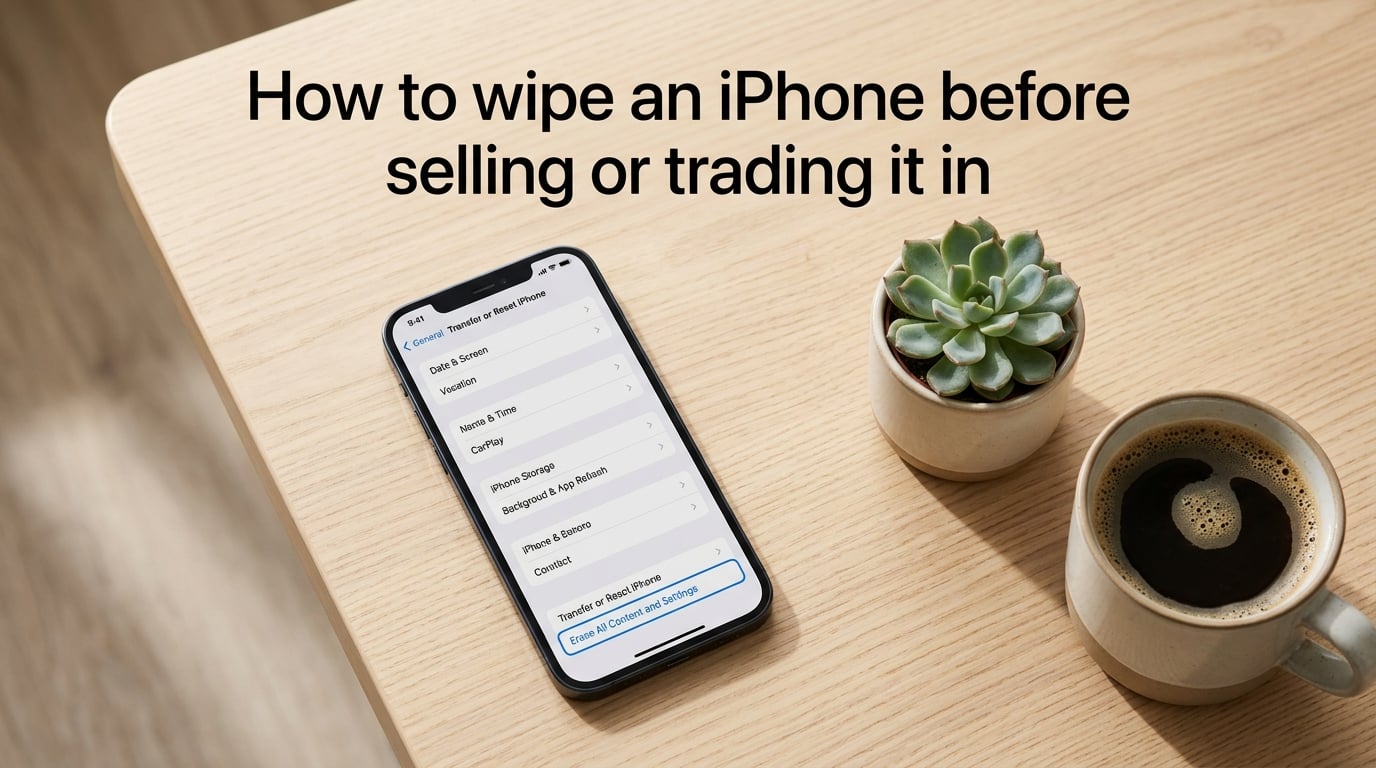
Scroll to the bottom and tap Transfer or Reset iPhone. Tap Erase All Content and Settings, then tap Continue.
Enter your passcode if prompted, then enter your Apple ID password to turn off Find My iPhone and Activation Lock. Confirm the erasure. The iPhone will restart, show a progress bar, and wipe itself completely.
This process typically takes between 2 and 10 minutes depending on your iPhone model and storage capacity. When it finishes, the screen will display the word Hello in multiple languages.
How to Verify Your iPhone Was Wiped Successfully?
After the erase completes, the iPhone should boot to the setup screen. You will see the word Hello slide across the screen in different languages. This is called the Hello screen, and it confirms the device is clean.
Tap through the first few setup screens. You should reach the Wi-Fi selection and Apple ID sign-in prompts as if the phone were brand new. At no point should the phone ask for the previous owner’s Apple ID password. If it does, Activation Lock is still active.
You can also verify remotely by signing in to your Apple ID account page at appleid.apple.com. Under the Devices section, your old iPhone should no longer appear in the list. If it is still there, the wipe did not fully complete and you may need to remove it manually.
Pre-Sale Checklist: Confirm Everything Is Done
Run through this checklist before you hand over your iPhone to a buyer or trade-in program.
Full backup completed and verified on iCloud or computer
New iPhone set up with all data, apps, and 2FA codes working
2FA authenticator apps transferred and confirmed on new device
Signed out of iCloud, App Store, and Apple ID
Find My iPhone confirmed off
Apple Watch unpaired from old iPhone
SIM card removed or eSIM transferred to new phone
Erase All Content and Settings completed successfully
iPhone boots to Hello screen with no Apple ID prompt
AppleCare plan transferred or canceled (if applicable)
If you can check every box above, your iPhone is ready to sell or trade in with zero privacy concerns.
Troubleshooting: What If Something Goes Wrong
Not every wipe goes smoothly. Here are the most common problems and how to fix each one.
Your iPhone Will Not Turn On or Is Lost
If your iPhone is broken, lost, or stolen, you can still wipe it remotely. Go to icloud.com on a computer or another device and sign in with your Apple ID.
Open the Find Devices app. Select your iPhone from the list, then click Erase This Device. This removes all data and turns off Activation Lock once the phone connects to the internet.
Note that remote erase only works if the iPhone still has battery power and an internet connection. If it never comes back online, you can remove it from your Apple ID account manually so Activation Lock is lifted for any future owner.
You Forgot Your Apple ID Password
You need your Apple ID password to sign out and turn off Find My iPhone. If you forgot it, go to iforgot.apple.com on another device and follow the password reset steps.
Once you reset the password, return to your iPhone and complete the sign-out and erase steps normally. The whole reset process usually takes under 15 minutes.
You Forgot Your iPhone Passcode
If you cannot unlock your iPhone because you forgot the passcode, put it into recovery mode and restore it using a computer. Connect the iPhone to a Mac or PC, open Finder or the Apple Devices app, and follow the on-screen restore prompts.
After restoring, the iPhone returns to the Hello screen. You will still need your Apple ID password to remove Activation Lock before selling.
Activation Lock Is Still On After Erasing
If the buyer reports an Activation Lock screen, it means Find My iPhone was not fully turned off. Sign in to your Apple ID account page, go to Devices, select the old iPhone, and click Remove from Account.
This lifts the Activation Lock remotely so the new owner can set up the device with their own Apple ID.
Switching to Android? Deregister iMessage First
If you are moving from iPhone to Android instead of upgrading, deregister your phone number from iMessage. Otherwise, other iPhone users will keep sending you texts that disappear into Apple’s servers and never reach your Android phone.
Go to Apple’s self-service deregistration page at selfsolve.apple.com/deregister-imessage. Enter your phone number, confirm the code Apple sends via SMS, and your number is removed from iMessage.
You can also deregister by removing your SIM card from the iPhone before wiping it. But using Apple’s official tool is the most reliable method.
FAQs
Can I wipe my iPhone before trading it in?
Yes, you should always wipe your iPhone before trading it in. Trade-in programs from Apple, Verizon, T-Mobile, and ATu0026amp;T all require the device to be erased and removed from your Apple ID. Use Settings u0026gt; General u0026gt; Transfer or Reset iPhone u0026gt; Erase All Content and Settings to wipe it completely before handing it over.
Does erasing an iPhone really delete everything?
Yes, erasing an iPhone deletes everything permanently. The Erase All Content and Settings option destroys the encryption key in the Secure Enclave, making your photos, messages, passwords, and app data unrecoverable. No third-party recovery tool can restore data from a properly erased iPhone.
Will erasing an old iPhone affect a new one?
No, erasing your old iPhone has no effect on your new iPhone. Your data is stored in iCloud and your backups, so wiping the old device simply removes your personal information from that specific phone. Your new iPhone keeps all its data, apps, and settings intact.
Is an erased iPhone safe to sell?
Yes, an erased iPhone is safe to sell. As long as you used Erase All Content and Settings and confirmed Find My iPhone is off, the buyer cannot access any of your personal data. The device will boot to the Hello screen and the new owner sets it up fresh with their own Apple ID.
Wrapping Up: Your iPhone Is Ready to Sell
Knowing how to wipe an iPhone before selling or trading it in comes down to following the right steps in the right order. Back up first, transfer your authenticator apps, sign out of iCloud, turn off Find My, handle your SIM and Apple Watch, then erase.
The entire process takes about 20 minutes once your new phone is set up. Take your time with each step, and use the checklist above to confirm nothing was missed.
When the Hello screen appears and your device no longer shows up on your Apple ID account page, you can sell or trade it in with complete confidence. Your personal data is gone for good, and the next owner can activate the phone without any issues.