
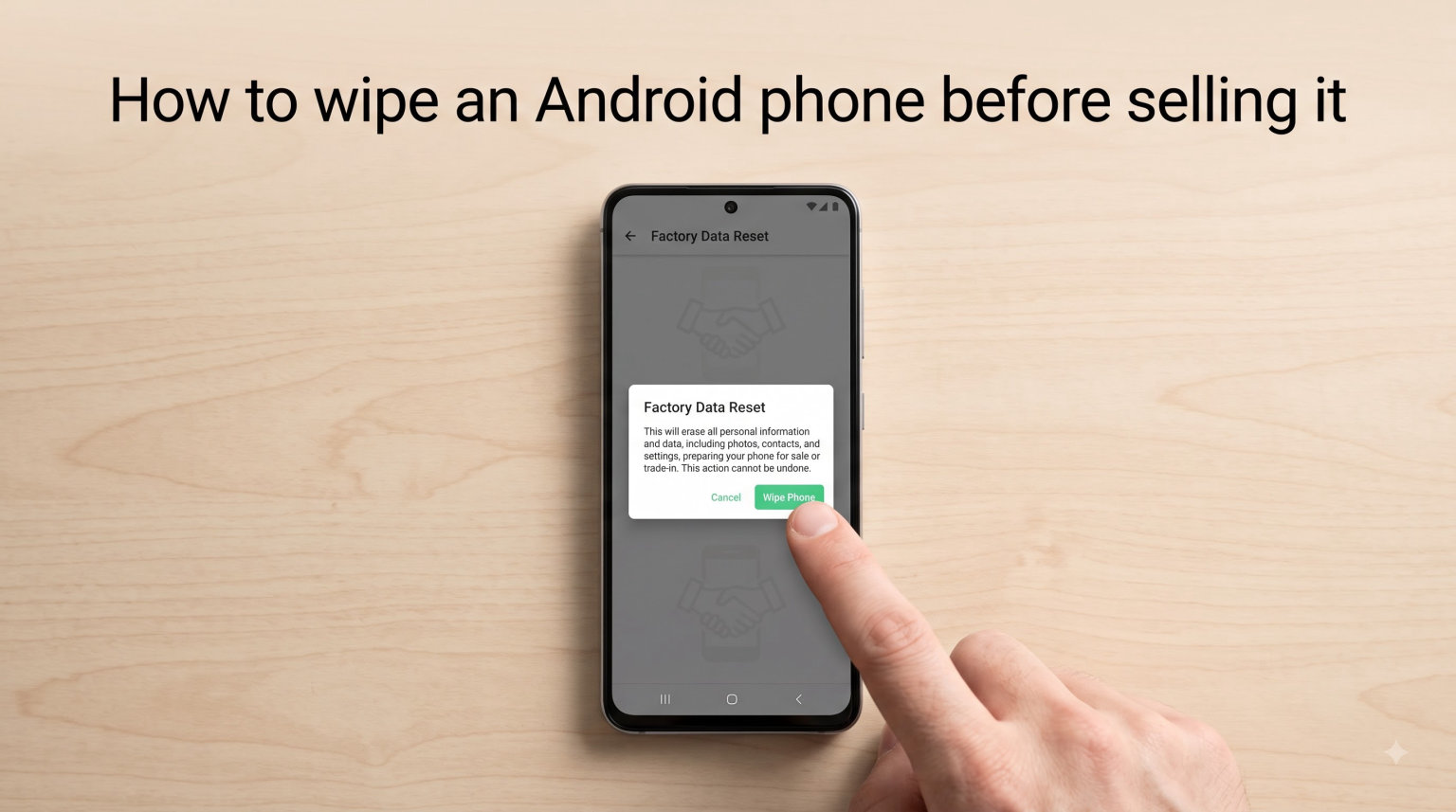
Selling your old Android phone is a great way to recoup some cash when you upgrade. But before you hand it over to a stranger or a trade-in service, you need to wipe it properly. Your phone holds years of personal photos, saved passwords, banking apps, text messages, and browsing history. If you skip even one step, the next owner could potentially access all of it.
Learning how to wipe an Android phone before selling it takes about 20 minutes of actual work, and it could save you from a serious privacy nightmare. I have helped friends and family reset their phones countless times, and the process is the same whether you are selling a Samsung Galaxy, a Google Pixel, or a budget phone from Motorola. The key is following the steps in the right order.
This guide walks you through everything from backing up your data to performing a factory reset to verifying your personal information is truly gone. I will also cover what to do if your phone is locked and you cannot access the settings menu, because that is a situation no other guide seems to address.
Table of Contents
Quick Checklist: Wipe Your Android Phone in 7 Steps
Before diving into the details, here is the entire process at a glance. If you just want the short version, follow these steps in order:
Back up photos, contacts, and files to the cloud or your new phone
Sign out of your Google account, Samsung account, and all apps
Disable Find My Device and remove the phone from your Google account
Remove your SIM card and microSD card
Go to Settings and perform a factory data reset
Confirm the phone boots to the setup screen with no personal data
Verify no accounts are linked by checking the activation lock
Each of these steps matters. Skipping the account sign-out step, for example, can trigger Factory Reset Protection, which locks the phone and makes it useless to the next owner.
Before You Wipe: Back Up Everything
Once you factory reset your phone, everything on it is gone for good. That is the whole point. So before you do anything else, make sure you have copies of everything you want to keep.
Back Up Photos and Videos
Open Google Photos and let it finish syncing. If you have a large photo library, connect to Wi-Fi and plug your phone into a charger overnight to give it time to upload everything. You can also connect your phone to a computer with a USB cable and drag your DCIM folder over manually for a physical backup.
Back Up Contacts, Calendars, and App Data
Most of this happens automatically if you are signed into your Google account. To verify, go to Settings, then Google, then Backup, and tap Back up now. Wait for the process to complete. This backs up your contacts, call history, app data, and device settings to Google Drive.
Back Up Messages and WhatsApp
SMS messages do not always back up automatically. Use an app like SMS Backup and Restore, or check if your phone manufacturer includes a backup tool. For WhatsApp, go to Settings, then Chats, then Chat Backup, and tap Back Up to save your conversations to Google Drive.
Move Authenticator Apps
This is the step people forget and regret the most. If you use Google Authenticator, Authy, or Microsoft Authenticator for two-factor authentication, transfer your accounts to your new phone before wiping the old one. Otherwise you could get locked out of your email, social media, and banking accounts.
How to Sign Out of All Accounts?
Signing out of your accounts before the factory reset is not optional. If you reset the phone while still signed in, Android’s Factory Reset Protection kicks in. The next person who turns on the phone will be asked to enter your Google password. This is an anti-theft feature, but it also means you just sold someone a paperweight.
Sign Out of Your Google Account
Go to Settings, scroll to Passwords and accounts, and tap your Google account. Tap Remove account, then confirm. If you have multiple Google accounts on the phone, remove all of them. On some Samsung devices, the path is Settings, then Accounts and backup, then Manage accounts.
Sign Out of Your Samsung Account
If you have a Samsung phone, you also need to remove your Samsung account separately. Go to Settings, tap your name at the top, scroll down, and tap Sign out. Enter your Samsung password to confirm. Forgetting this step is the number one reason Samsung phones come back as trade-in rejections.
Disable Find My Device
Find My Device is Google’s tracking and remote wipe service. It links your phone to your Google account, and it can interfere with a clean reset. Go to Settings, then Security, then Find My Device, and toggle it off. You should also visit android.com/find from a computer and remove the old device from your account once the reset is done.
Sign Out of Individual Apps
Log out of banking apps, social media, password managers, and streaming services. The factory reset will delete the apps anyway, but signing out first ensures no cached login tokens or session data lingers. For messaging apps like WhatsApp and Telegram, deactivate your account within the app settings so you do not get locked out when activating on your new device.
Remove Screen Lock for Trade-Ins
If you are trading in your phone through a carrier or service like Samsung Trade-In, remove your PIN, pattern, or fingerprint lock before shipping it. Go to Settings, then Security, then Screen lock, and set it to None. Some trade-in programs reject phones that arrive locked.
Remove Your SIM Card and SD Card
This step takes 30 seconds, but almost no guide mentions it. Your SIM card contains your phone number, carrier information, and in some cases stored contacts. Your microSD card might hold photos, downloads, and app data that the factory reset will not touch.
How to Remove the SIM Card
Find the SIM tray on the side of your phone. Use the SIM ejection tool that came in the box, or straighten a paperclip. Insert it into the small hole next to the tray and push gently until the tray pops out. Remove the SIM card and slide the empty tray back in. Keep your SIM card safe because you will need it for your new phone.
How to Remove the microSD Card
If your phone has a microSD card slot, use the same ejection tool or look for a slot on the same tray. Some phones let you remove the SD card through software by going to Settings, then Storage, then tapping the SD card and selecting Eject. Once ejected, physically remove the card. Format it or keep it for your next device.
How to Wipe an Android Phone Before Selling It
Now for the main event. Once your data is backed up and your accounts are removed, you are ready to perform the factory reset. The exact menu names vary slightly between manufacturers, but the path is essentially the same on every Android phone running Android 10 or later.
Step 1: Open Settings and Find Reset Options
Open the Settings app. Scroll down and tap System, then tap Reset options. On Samsung phones, the path is Settings, then General management, then Reset. On Google Pixel, it is Settings, then System, then Reset options.
Step 2: Select Erase All Data
Tap Erase all data (factory reset). This is the option that wipes everything. Do not tap Reset Wi-Fi, mobile, and Bluetooth unless you only want to clear network settings. You want the full reset.
Step 3: Review What Will Be Deleted
Your phone will show a summary of what gets erased. This includes all downloaded apps, photos, music, accounts, and personal files. It will also show whether any accounts are still signed in. If you see a Google account listed here, go back and remove it first to avoid Factory Reset Protection.
Step 4: Confirm and Enter Your PIN
Tap Erase all data again to confirm. Your phone will ask for your screen lock PIN, pattern, or password. Enter it. The phone will then display a final warning and start the reset process.
Step 5: Wait for the Reset to Complete
The phone will reboot and show an erasing screen. This typically takes 5 to 15 minutes depending on how much data you have. Do not turn off the phone or remove the battery during this process. When it finishes, the phone will restart and display the initial setup screen, just like when you first bought it.
Step 6: Do Not Complete the Setup
When the phone boots to the welcome screen, stop there. You do not need to connect to Wi-Fi or sign in. The phone is now clean and ready for its next owner. Power it off by holding the power button and selecting Power off.
Manufacturer-Specific Reset Paths
While the general process is the same, the exact menu names differ between brands. Here are the specific paths for the most popular Android manufacturers.
Samsung Galaxy
Go to Settings, then General management, then Reset, then Factory data reset. Samsung phones also require you to remove your Samsung account separately from your Google account. If you skip this, the new owner will see a Samsung activation lock screen asking for your Samsung password.
Google Pixel
Go to Settings, then System, then Reset options, then Erase all data (factory reset). Pixel phones are straightforward because they run stock Android. Just make sure Find My Device is disabled and your Google account is removed before resetting.
OnePlus
Go to Settings, then System settings, then Back up and reset, then Reset phone, then Erase all data. OnePlus phones sometimes require you to enter your OnePlus account password if you are signed into one. Remove the account from Settings before resetting.
Motorola and Other Brands
Most phones running near-stock Android follow the Google Pixel path: Settings, then System, then Reset options, then Erase all data. If you cannot find it, search for “reset” in the Settings search bar at the top of the screen.
How to Reset a Locked Android Phone?
This is the question I see most often on Reddit’s Android forums. What happens if you forgot your PIN, the screen is broken, or the phone will not boot past the lock screen? You can still wipe it, but you need to use recovery mode.
Step 1: Turn Off the Phone
Hold the power button and select Power off. If the screen is unresponsive, hold the power button and volume down button together for about 10 seconds until the phone force-restarts, then immediately release and hold the power button again to power off.
Step 2: Boot Into Recovery Mode
Press and hold the power button and volume up button at the same time. Keep holding until you see the phone manufacturer’s logo, then release the power button while still holding volume up. On some Samsung phones, you need to connect the phone to a computer with a USB cable while holding the buttons. You should see the Android recovery menu appear.
Step 3: Navigate to Wipe Data
Use the volume down button to scroll through the menu. Highlight Wipe data or factory reset, then press the power button to select it. Confirm by selecting Factory data reset and pressing the power button again.
Step 4: Reboot the Phone
Once the reset completes, select Reboot system now. The phone will restart to the initial setup screen. Note that if Factory Reset Protection was active, the phone will still ask for the previous Google account credentials during setup. This is by design to prevent thieves from resetting stolen phones.
Is a Factory Reset Really Enough?
This is where things get interesting, and it is a question that sparks heated debates on privacy forums. The short answer is yes, a factory reset is enough for 99 percent of people selling a phone on the used market. Here is why.
How Android Encryption Protects You
Every Android phone running Android 9.0 or later uses file-based encryption by default. This means your data is encrypted using AES-256, the same standard used by banks and government agencies. When you perform a factory reset, Android does not individually erase each file. Instead, it deletes the encryption keys.
Without those keys, any leftover data fragments on the phone’s storage are just scrambled gibberish. Even if someone used professional data recovery tools, they would get nothing usable. Think of it like shredding a combination safe along with the combination itself. The documents inside might still physically exist, but nobody can read them.
What About Multiple Resets?
On Reddit, I have seen users recommend doing 6 or 7 factory resets in a row, then filling the storage with junk video files, and resetting again. This comes from the world of computer hard drives, where writing over old data multiple times was once considered necessary for security.
Modern Android phones use flash storage that works differently. Because of encryption, multiple resets add no real security benefit. One factory reset on an encrypted phone is functionally equivalent to a dozen. You are just wasting your time and wearing out the storage for no gain.
When You Might Want Extra Steps
If you are genuinely worried about government-level forensic tools like Cellebrite, you can take additional precautions. Before resetting, go to Settings, then Security, then Encryption and credentials, and ensure your phone is encrypted. Most modern phones already are, but checking costs nothing. You can also fill the storage with large video files before resetting, which overwrites any deleted data on the storage blocks. This is overkill for selling a phone on Swappa or eBay, but it gives some people peace of mind.
How to Verify Your Data Is Gone?
After the factory reset, your phone should boot to a screen that says Start or Welcome in the language selection. If you see this screen, the reset was successful. Here is how to double-check.
Do not complete the setup process. Instead, look for any prompt asking for a Google account or Samsung account password. If no such prompt appears, Factory Reset Protection is off and the phone is clean. If you see an account prompt, go back to the setup and skip it. The next owner will sign in with their own account.
Visit android.com/find on a computer and confirm your old phone no longer appears in your device list. If it does, click the X next to it to remove it. This ensures no remote tracking or wiping is possible from your account.
Frequently Asked Questions
Does factory reset remove all data permanently on Android?
Yes. On phones running Android 9.0 or later, a factory reset deletes the encryption keys that protect your data. Even if fragments remain on the storage, they are unreadable without those keys. For practical purposes, your personal data is permanently gone after a factory reset.
How to completely wipe an Android phone before selling?
Back up your data, sign out of all Google and Samsung accounts, disable Find My Device, remove your SIM and SD cards, then go to Settings u0026gt; System u0026gt; Reset options u0026gt; Erase all data (factory reset). Confirm the reset and wait for the phone to reboot to the setup screen.
Does factory resetting a phone make it safe to sell?
Yes for the vast majority of cases. Modern Android encryption means a single factory reset makes your data effectively unrecoverable. Advanced forensic tools used by law enforcement could theoretically access fragments, but this is not a concern for someone buying a used phone on a marketplace.
How to wipe an Android phone without losing data?
You cannot factory reset without losing data, which is the entire point. Back up everything first to Google Drive, Google Photos, or a computer. Once backed up, verify the backup is complete before proceeding with the reset. Your data lives safely in the cloud and can be restored to your new phone.
Conclusion
Knowing how to wipe an Android phone before selling it comes down to a simple sequence: back up, sign out, remove cards, and reset. Follow those four phases in order and you will never have to worry about someone digging through your old photos or banking history. The whole process takes about 20 minutes of active time plus however long your backup needs to finish uploading.
One factory reset on a modern encrypted Android phone is all you need. Skip the urban legends about doing it seven times. The encryption keys that Android destroys during the reset make your data permanently unreadable to anyone who buys your phone next.
Take the extra minute to remove your SIM card and SD card before shipping or handing over the device. Those small pieces of plastic and metal carry more personal information than most people realize. Once everything is removed and reset, you can sell or trade your phone with total confidence that your private data stays private.